How to save and manage your trips
Planning is only useful if the plan is still there tomorrow. Saving a trip stores it to your account so you can reopen it on any device, share it, export it, and navigate it from your phone. This guide covers saving and managing your trips.
Save a trip
- With an itinerary open, choose Save.
- Give the trip a name (something you'll recognize later — "Utah loop, October").
- It's stored to your account.
After the first save, edits update the trip automatically — you don't have to save again each time.
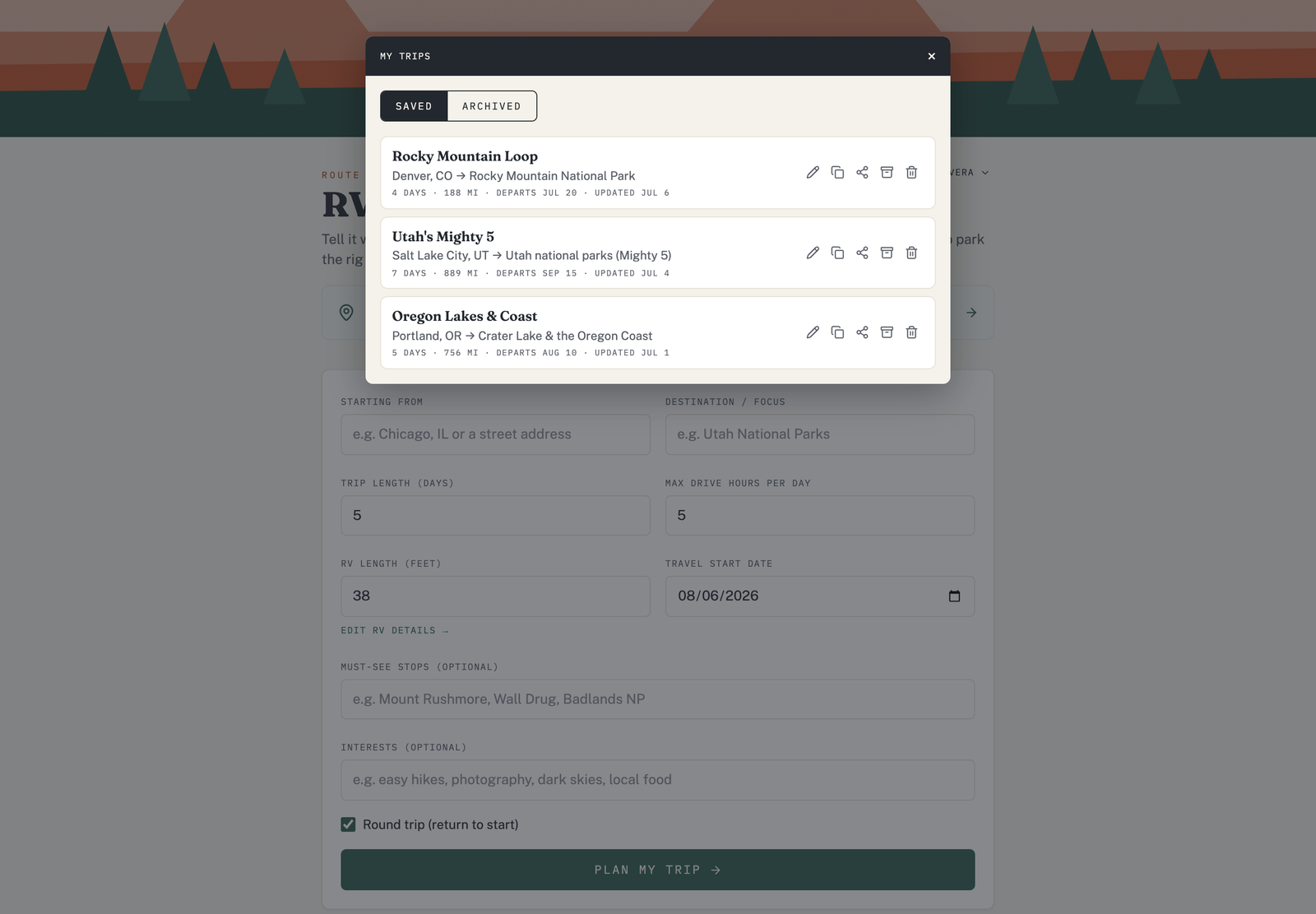
Find your trips in My Trips
Open My Trips from the account menu to see everything you've saved. Each trip shows its route and length so you can tell them apart at a glance.
Rename, duplicate, or delete
From My Trips you can:
- Open a trip to keep editing it.
- Rename it.
- Duplicate it — handy when you want to build a variation without losing the original.
- Delete it when you're done.
Trips sync to your phone
On a paid plan, saved trips appear in the My Trips tab of the iPhone and Android apps, and changes you make on the website sync to the apps. That's how the itinerary on your phone matches the one you built at home — ready to hand off to turn-by-turn navigation.
Free plan: you can keep one saved trip. To save more, see Free vs Pro plans.