How to navigate a trip with turn-by-turn directions
When it's time to drive, the RV Roost apps turn your plan into live, spoken directions built for your rig — not a passenger-car route. This guide covers navigating a trip from the mobile apps and using your vehicle's head unit.
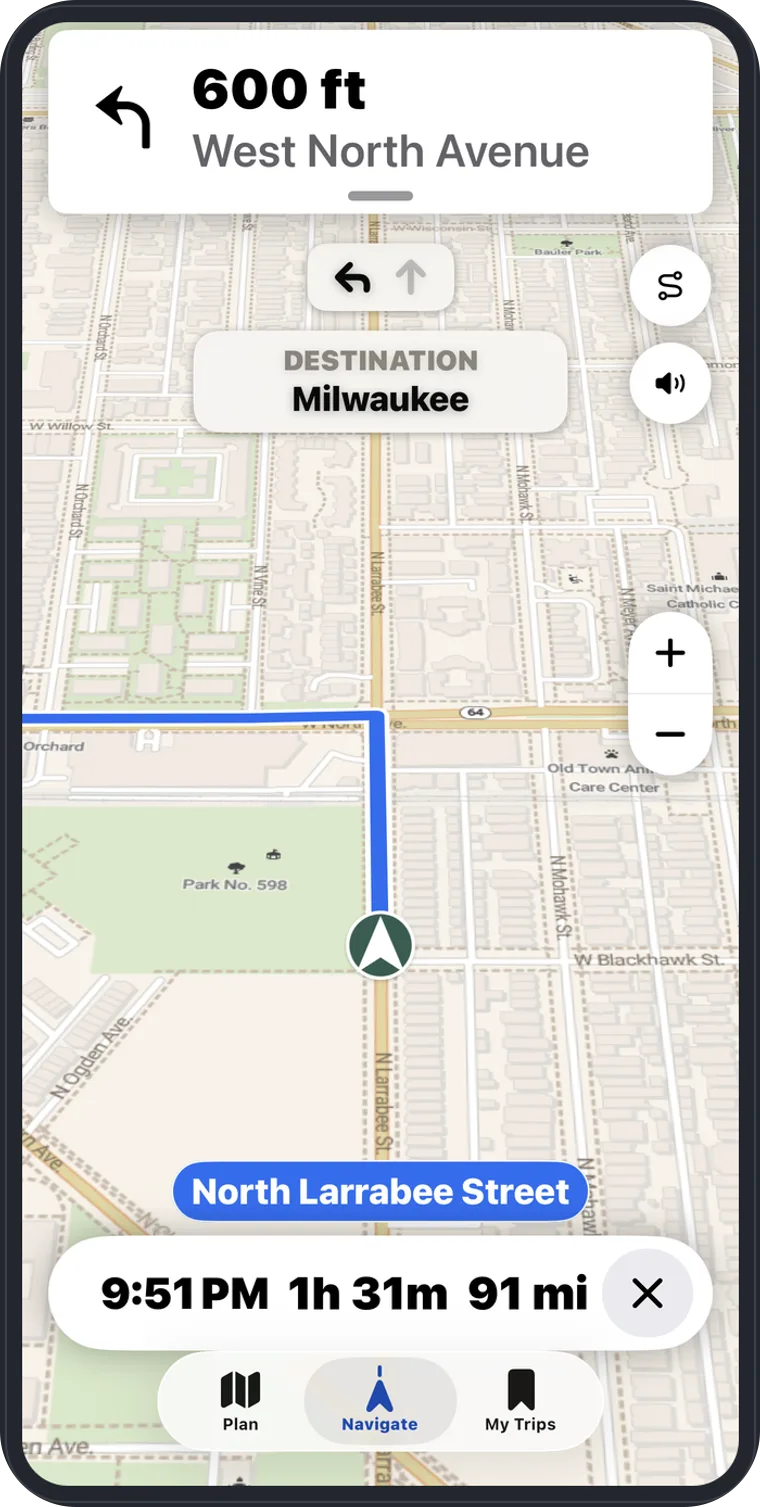
Start navigating
- Open the RV Roost app on your iPhone or Android and sign in.
- Go to your trip in My Trips.
- Start navigation to the next stop.
You'll get spoken, turn-by-turn directions along the route.
Rig-aware directions
Navigation uses your RV profile, so the route keeps your length, height, and weight off roads they don't belong on — the same RV-aware routing that shaped your plan. Directions stay in sync with the itinerary you built at home.
CarPlay and Android Auto
Connect your phone to a compatible vehicle to put navigation on the head unit:
- Apple CarPlay on iPhone
- Android Auto on Android
This keeps the map and prompts on your dashboard display and lets you keep your hands on the wheel.
Drive safe, verify conditions
RV Roost's routing and drive times are strong estimates, but the road is the final authority. Verify clearances, road conditions, and closures as you go, and don't let the app override what you can see out the windshield.