Troubleshooting common issues
Most snags in RV Roost come down to a few common causes. Here are the quick fixes, grouped by what you're seeing. If none of these solve it, reach out through the contact page.
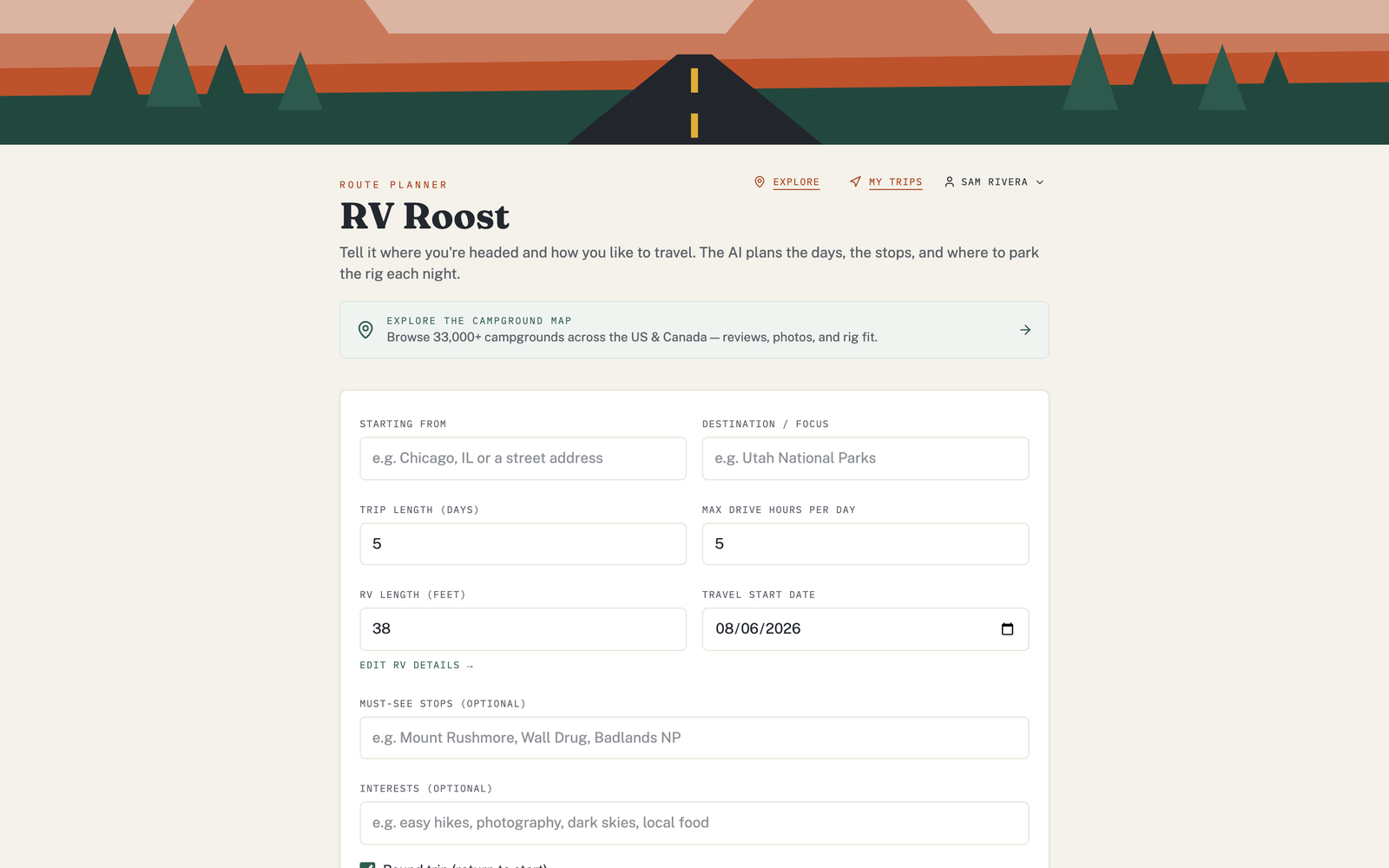
The planner won't generate a trip
- Make sure you're signed in. The planner needs an account. If you're signed out, sign in and try again.
- Check your start and destination are real, findable places — pick them from the search suggestions.
- Give it a moment. Generating a full itinerary takes a few seconds while it works out the route and campgrounds.
I can't save a trip, or I've hit a limit
- On the free plan, you can keep one saved trip of up to three nights. If you're blocked from saving another or extending past three nights, that's the plan limit — see Free vs Pro plans.
The campground picks don't fit my rig
- Fill in your RV profile. Without your length, height, and weight, picks fall back to generic assumptions.
- Set required amenities. Mark must-haves (like full hookups) as Required so sites without them rank lower. See Understanding the Match Score.
A route looks longer than I expected
That's often RV-aware routing doing its job — avoiding low clearances, weight-limited bridges, or propane-restricted tunnels a car route would ignore. Double-check your rig's height, weight, and propane setting are correct.
I can't sign in
- Use the forgot password link to reset your password by email.
- If you signed up with Google or Apple, use that same button to sign back in.
- Check for a verification email if your account is new.
My trip isn't showing on my phone
- Sign in with the same account on the app and the website.
- Saved-trip sync and the mobile apps are part of a paid plan — see Free vs Pro plans.
- The app refreshes trips when you open it; make sure it has a connection.
An export won't download or a calendar import is empty
- Save the trip first — exports come from a saved itinerary.
- For a calendar (ICS) export, set a start date on the trip so events land on real days. See Export your trip.
Still stuck?
Check the FAQ, or contact us through the contact page with a description of what you did and what you saw.